This article is for engineers who want to visualize indoor air quality. I'll show you the shortest path to connecting an ESP32-S3 and CO2 sensor "SCD41" with ESPHome and streaming CO2, temperature, and humidity into Home Assistant. Almost no soldering, and all firmware code is included. (The motivation: I wanted to physically visualize the "why does my head feel foggy during remote work" problem.)
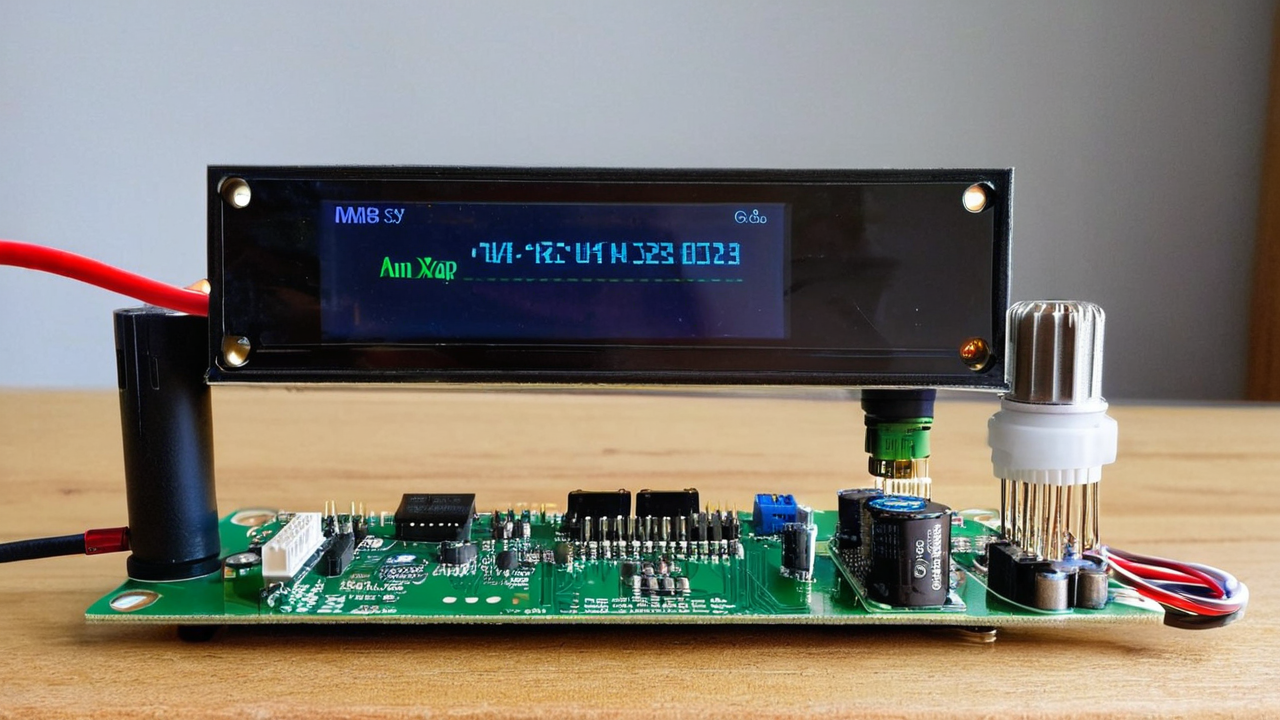
What You Can Do with This Article
- Build a standalone CO2 monitor running on ESP32-S3 (power consumption in the tens of mW range)
- Auto-integrate with Home Assistant just by writing ESPHome YAML (full code included)
- Total parts cost starts around ¥4,000
Parts Used
- Seeed Studio XIAO ESP32-S3 (check on Amazon) — thumb-sized ESP32-S3 dev board. USB-C direct flashing makes it easy
- AITRIP SCD41 Gas Sensor Module (check on Amazon) — Sensirion NDIR CO2 sensor breakout. Also reads temperature and humidity
- Jumper wires (M-F, 40-pin) (check on Amazon) — only 4 needed
- Anker PowerLine III USB-C cable (check on Amazon) — doubles as power and programming cable
- (Optional) Small enclosure or cardboard box
Architecture
Steps
1. Wiring (4 wires only)
Connect SCD41 to XIAO ESP32-S3 over I2C. XIAO's default I2C is D4 = GPIO5 (SDA) and D5 = GPIO6 (SCL).
| SCD41 Side | XIAO ESP32-S3 Side |
|---|---|
| VDD | 3V3 |
| GND | GND |
| SDA | D4 (GPIO5) |
| SCL | D5 (GPIO6) |
2. Set Up ESPHome
ESPHome is Home Assistant's official "firmware generation tool for microcontrollers." Installing the ESPHome add-on in Home Assistant is the easiest approach (no HACS required). To run it locally, install via pipx.
$ pipx install esphome
$ esphome version
2026.4.x
3. Write the YAML (copy-paste ready)
Save the following as co2-monitor.yaml. Replace the !secret values with your own Wi-Fi credentials.
esphome:
  name: co2-monitor
  friendly_name: CO2 Monitor

esp32:
  board: seeed_xiao_esp32s3
  framework:
    type: arduino

logger:
api:
  encryption:
    key: "insert your 32-byte base64 key here"

ota:
  - platform: esphome
    password: "your-ota-password"

wifi:
  ssid: !secret wifi_ssid
  password: !secret wifi_password

i2c:
  sda: GPIO5
  scl: GPIO6
  scan: true

sensor:
  - platform: scd4x
    co2:
      name: "CO2"
    temperature:
      name: "Temperature"
    humidity:
      name: "Humidity"
    update_interval: 60s
4. Flash the Firmware
Connect XIAO to your PC over USB-C. The first flash goes over serial.
$ esphome run co2-monitor.yaml
# Select the serial port and press Enter
After the first flash, updates on the same network can be done wirelessly via OTA. This is the biggest advantage of ESPHome.
5. Integrate with Home Assistant
If the device is on the same Wi-Fi, it's auto-discovered. If not, add it manually:
- Settings → Devices & services → Add Integration → ESPHome
- Enter hostname
co2-monitor.local - Enter the encryption key from the YAML → Done
Three sensors (CO2, Temperature, Humidity) will appear. Add sensor cards and history graph cards to a dashboard for instant visualization.
Hack Extensions
- Add an OLED display: Wire a 0.96-inch I2C OLED (SSD1306) (Amazon) to the same I2C bus and show the current CO2 level locally. Since it's I2C, no additional wiring needed — just add the device.
- Ventilation notification when CO2 is high: Use a Home Assistant automation to send a Slack or LINE notification when CO2 stays above 1,000 ppm for 3 minutes.
- LED warning light: Control the XIAO built-in LED or a WS2812B LED strip (Amazon) via the
light:component. Change color based on CO2 level (blue → green → yellow → red). - Battery operation: XIAO ESP32-S3 has a LiPo connector and onboard charging circuit. Deep sleep + 10-minute measurement intervals gives several days of runtime.
Common Issues
- SCD41 not detected over I2C: Check the
i2c: scan: truelog. Address0x62should appear. If not, check wiring — especially swapped SDA/SCL. - Board target in ESPHome:
board: esp32-s3-devkitc-1also works, but the XIAO-specificseeed_xiao_esp32s3has correct GPIO mappings. - Readings are erratic at first: SCD41 takes a few minutes to stabilize after power-on during calibration. Always-on operation is the intended use case.
※ The steps and code in this article were verified as of April 2026. If library or hardware versions change, it may not work as-is. Please let us know in the comments if something breaks.
Summary
ESP32-S3 + SCD41 gets you from zero to "CO2 flowing into Home Assistant" with no soldering and ~80 lines of YAML. It's cheaper than buying a commercial CO2 monitor, and far more extensible — automate ventilation reminders, trigger AC speed changes, whatever you want. That's the joy of building it yourself.
If this was helpful, sharing on X (Twitter) is appreciated.
FAQ
Q. What if SCD41 doesn't show up over I2C?
A. Check the i2c: scan: true log. If you don't see 0x62, check your wiring — especially SDA/SCL swap. XIAO ESP32-S3 default I2C is D4=GPIO5 (SDA), D5=GPIO6 (SCL).
Q. What if readings are unstable?
A. SCD41 takes a few minutes to calibrate after power-on. Always-on operation is the intended use case. Just wait a few minutes after startup.
Q. Which board target is correct for ESPHome?
A. Use seeed_xiao_esp32s3. The generic esp32-s3-devkitc-1 also works, but the XIAO-specific target gives correct GPIO mappings.
Q. Can it run on a battery?
A. Yes. XIAO ESP32-S3 has a direct LiPo connector and charging circuit. With deep sleep and 10-minute measurement intervals, it runs for several days.
Related Articles
- SwitchBot API × Raspberry Pi 5 — Automated AC Control [2026]
- Raspberry Pi Pico 2 W + MicroPython DIY Temperature Sensor [2026]
References
- ESPHome official: SCD4X component
- ESP32-S3-Co2-Monitor-For-ESPHome-and-Home-Assistant (GitHub)
- Seeed Studio XIAO ESP32-S3 Getting Started
- Sensirion SCD41 official page
※ This article was generated with automated updates via Claude Code.

No comments:
Post a Comment