※ Experimenting with automated article updates using Claude Code
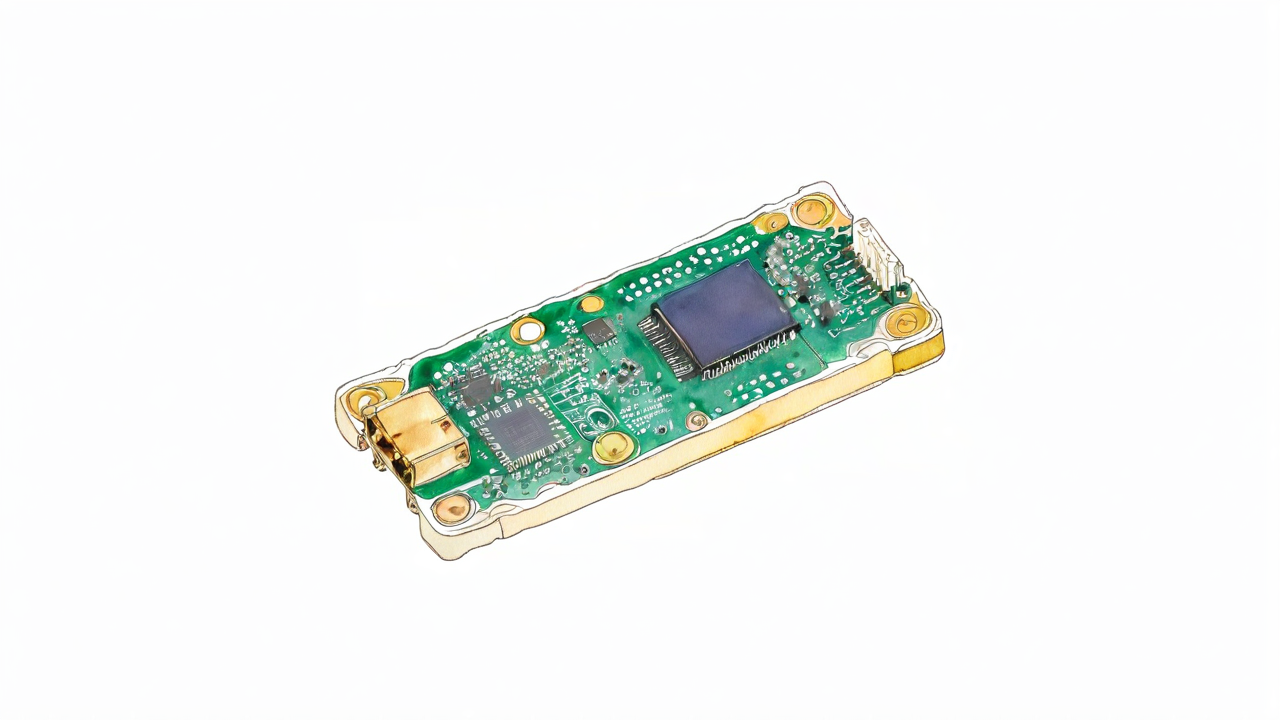
Ever since Raspberry Pi Pico 2 W came out, I keep getting asked "what's actually different from ESP32?" This post is a direct answer: using the Pico 2 W (RP2350 dual-core Cortex-M33 + Wi-Fi/BLE), I'll connect a BME280 temperature/humidity/pressure sensor, push the readings to Home Assistant over MQTT, and get the sensor to auto-register itself via MQTT Discovery — no manual YAML editing. No soldering, breadboard only. Beginners in electronics can get this running in 1–2 hours.
What You Can Do with This Article
- Flash MicroPython onto Raspberry Pi Pico 2 W and connect it to Wi-Fi
- Read temperature, humidity, and pressure from BME280 over I2C
- Auto-register sensors in Home Assistant via MQTT Discovery (no YAML needed)
- Total parts cost: ¥2,500–3,500
- Learn how to install
umqtt.simpleon Pico W and fix the idle-disconnect problem
Why Pico 2 W?
ESP32 can do the same thing, but Pico 2 W has strong official MicroPython support, connects to REPL immediately via Thonny, and has RP2350's dual-core — useful for dedicating one core to BLE reception. With Wi-Fi 4 + BLE 5.2 both on board, future expansions like "also pull data from a SwitchBot BLE temperature sensor" just work. This article focuses on MQTT, but there are some expansion ideas at the end.
Parts Used
- Raspberry Pi Pico 2 W (RP2350 / Wi-Fi 4 / BLE 5.2) (check on Amazon)
- HiLetgo BME280 Temperature/Humidity/Pressure Sensor Module (I2C / SPI) (check on Amazon)
- ELEGOO 830 Tie-Point Breadboard (check on Amazon)
- WayinTop Jumper Wire Kit (M-M / M-F assortment) (check on Amazon)
- USB Type-C cable (must support data — charge-only cables won't connect to REPL)
Software on the host side:
- MicroPython v1.24 or later (official UF2 for Pico 2 W)
- Thonny (handles REPL, file transfer, and
mippackage management) - Home Assistant (HAOS or Container, either works)
- Mosquitto (the Mosquitto broker add-on in Home Assistant is the easiest option)
Wiring
Connect BME280 over I2C. Using Pico 2 W's I2C0 defaults (GP4=SDA / GP5=SCL) keeps the code short.
GND → GND
GP4 (SDA) → SDA
GP5 (SCL) → SCL
If the BME280 module has a 3.3V regulator on board, 5V also works — but power from 3V3(OUT) to reduce noise and self-heating (which makes temperature readings slightly high).
Steps
1. Flash MicroPython onto Pico 2 W
Hold BOOTSEL while inserting USB — the Pico 2 W appears as a mass storage device. Drag and drop the latest RP2350 UF2 onto it.
# raspberrypi.com/documentation/microcontrollers/micropython.html
# Download the .uf2 for "Raspberry Pi Pico 2 W" and copy to the RPI-RP2 drive
# It reboots automatically and MicroPython starts
2. Install umqtt.simple from Thonny
Older articles say to use upip — as of 2026, upip is deprecated. Use mip instead. From the Thonny shell (MicroPython side):
>>> import mip
>>> mip.install("umqtt.simple")
>>> mip.install("umqtt.robust")  # for auto-reconnect on disconnect
This will fail if Pico 2 W isn't connected to Wi-Fi yet — either connect first, or download simple.py on your PC and upload it via Thonny.
3. Install the BME280 Driver
Several MicroPython BME280 drivers exist, but robert-hh/BME280 is the most stable. Transfer bme280_float.py to the Pico via Thonny's file browser.
4. Write main.py
Minimal setup: connect to Wi-Fi → read from BME280 → send Discovery config to Home Assistant once → publish values every 60 seconds. Credentials are hardcoded for now (move to a secrets file later for cleaner git management).
import network, time, ujson, machine
from umqtt.robust import MQTTClient
import bme280_float as bme280

WIFI_SSID = "YourSSID"
WIFI_PASS = "YourPass"
MQTT_HOST = "192.168.1.10"   # Home Assistant IP
MQTT_USER = "pico"
MQTT_PASS = "picopass"
DEVICE_ID = "pico2w_livingroom"

# --- Wi-Fi ---
wlan = network.WLAN(network.STA_IF); wlan.active(True)
wlan.connect(WIFI_SSID, WIFI_PASS)
for _ in range(20):
    if wlan.isconnected(): break
    time.sleep(0.5)
print("ip:", wlan.ifconfig()[0])

# --- I2C / BME280 ---
i2c = machine.I2C(0, sda=machine.Pin(4), scl=machine.Pin(5), freq=100_000)
sensor = bme280.BME280(i2c=i2c)

# --- MQTT ---
c = MQTTClient(DEVICE_ID, MQTT_HOST, user=MQTT_USER, password=MQTT_PASS,
               keepalive=60)   # <- prevents idle disconnects
c.connect()

# --- HA Auto Discovery (send once with retain) ---
def disc(component, name, key, unit, dev_class):
    topic = "homeassistant/sensor/{}/{}/config".format(DEVICE_ID, key)
    payload = {
        "name": name,
        "state_topic": "ontheh/{}/state".format(DEVICE_ID),
        "unit_of_measurement": unit,
        "value_template": "{{{{ value_json.{} }}}}".format(key),
        "unique_id": "{}_{}".format(DEVICE_ID, key),
        "device_class": dev_class,
        "device": {"identifiers":[DEVICE_ID], "name":"Pico 2W Livingroom",
                   "manufacturer":"Raspberry Pi", "model":"Pico 2 W"},
    }
    c.publish(topic, ujson.dumps(payload), retain=True)

disc("sensor", "Living Room Temp", "temp", "°C", "temperature")
disc("sensor", "Living Room Humidity", "hum",  "%",  "humidity")
disc("sensor", "Living Room Pressure", "pres", "hPa","pressure")

# --- Main loop ---
while True:
    t, p, h = sensor.read_compensated_data()
    payload = ujson.dumps({
        "temp": round(t, 2),
        "hum":  round(h, 2),
        "pres": round(p / 100, 2),    # Pa to hPa
    })
    c.publish("ontheh/{}/state".format(DEVICE_ID), payload)
    print(payload)
    time.sleep(60)
5. Verify in Home Assistant
Start the Mosquitto broker add-on and create a user — the moment main.py runs, Settings → Devices & services → MQTT will show "Pico 2W Livingroom" auto-registered as a device. No YAML editing or restart needed.
# To monitor MQTT traffic directly via the Mosquitto add-on:
$ mosquitto_sub -h 127.0.0.1 -u pico -P picopass -t 'ontheh/#' -v
ontheh/pico2w_livingroom/state {"temp": 24.31, "hum": 53.78, "pres": 1011.42}
Common Issues
- USB plugged in but nothing is recognized → Charge-only cable. Switch to a cable with data lines.
mip.installreturns "not found" → Wi-Fi not connected. Connect vianetwork.WLANfirst.- I2C device doesn't appear in
i2c.scan()→ BME280 address is0x76or0x77depending on how SDO is wired. Trybme280.BME280(i2c=i2c, address=0x77). - Publishing stops after a few hours → Broker is dropping the connection due to keepalive timeout. Use
MQTTClient(..., keepalive=60)+umqtt.robustfor automatic reconnect. - Temperature reads about +2°C high → BME280 self-heating. Orient the board on its long edge, switch from 5V to 3V3 power, and if still off, apply an offset correction in
value_template. - Sensor doesn't appear in HA → Discovery topics must be sent with
retain=True. If you sent without it, restart HA or send an empty payload""to clear the topic and resend.
Hack Ideas
- BLE mode to sniff SwitchBot sensors: Use Pico 2 W's BLE 5.2 to receive SwitchBot advertisement packets directly and pull temperature/humidity without an HA Bridge. Implement from OpenWonderLabs' public spec.
- Add a 0.96-inch HiLetgo OLED display (SSD1306 / I2C 128×64) (Amazon) on Pico's I2C1 (GP14/GP15) for local readout. BME280 and OLED can share the same bus with different I2C addresses.
- Use RP2350's second core with _thread and a ring buffer: One core handles I2C reads, the other handles MQTT publishing — completely decoupled. Sampling continues even during Wi-Fi disconnects. This was painful on Pico 1, much easier on 2.
- Tie into HA automations: "Turn on the dehumidifier SwitchBot plug when humidity exceeds 60%" — just reference the auto-discovered entity name in the automation.
Power Consumption Note
Pico 2 W running on 5V USB with a 60-second publish loop draws around 70mA on average (due to maintaining Wi-Fi). Using machine.deepsleep() to wake only for sensor readings can drop to 10–15mA, but Wi-Fi reconnect takes 3–5 seconds each time. For a 1-minute interval home sensor, always-on is practical enough.
※ The steps and code in this article were verified as of April 2026. If library or hardware versions change, it may not work as-is. Please let us know in the comments if something breaks.
Summary
Raspberry Pi Pico 2 W + BME280 + MQTT Discovery: a no-solder temperature/humidity monitor integrated into Home Assistant. Once you nail the umqtt.simple install and keepalive, there aren't many other gotchas. Deploy a few more around the living room, bedroom, and entryway for a whole-house temperature/humidity map.
If this was helpful, sharing on X (Twitter) is appreciated.
References
- Raspberry Pi official: MicroPython on Pico
- MicroPython docs: umqtt.simple
- Home Assistant: MQTT Discovery
- robert-hh/BME280 (MicroPython driver)
- Random Nerd Tutorials: Pico W MQTT MicroPython
※ This article was generated with automated updates via Claude Code.

No comments:
Post a Comment